JavaScript Error Handling and Debugging – Complete Guide with try-catch, Custom Errors, Browser DevTools, and Practical Projects (2026)
What You Will Learn
After completing this tutorial, you will be able to:
– Understand JavaScript errors and exceptions
– Identify different types of JavaScript errors
– Use try...catch effectively
– Create custom errors
– Debug applications using Browser Developer Tools
– Analyze stack traces
– Handle API errors
– Build robust JavaScript applications
Why Learn Error Handling?
Every software application encounters errors.
Imagine these situations:
- A customer enters an invalid email.
- A server stops responding.
- An API returns an error.
- Internet connectivity is lost.
- A file fails to upload.
- JSON data becomes corrupted.
Without proper error handling:
– Application crashes
– Users lose data
– Poor user experience
– Difficult debugging
– Financial loss
With proper error handling:
– Application continues running
– Better user experience
– Easier maintenance
– Improved security
– Faster debugging
Real-World Applications
Error handling is used in:
- Banking Applications
- ATM Software
- E-Commerce Websites
- Flight Booking Systems
- Hospital Management Systems
- ERP Applications
- Online Examination Systems
- Government Portals
- Payment Gateways
- REST APIs
What is an Error?
An error is an unexpected condition that prevents a program from executing as intended.
Errors may occur because of:
- Programming mistakes
- Invalid user input
- Network failures
- Missing files
- Incorrect API responses
- Hardware failures
Errors may stop program execution or produce incorrect results.
Error vs Bug vs Exception
| Term | Meaning |
|---|---|
| Error | Problem detected during program execution |
| Bug | Mistake made by the programmer |
| Exception | Runtime error that can be handled |
Example:
The programmer writes:
console.log(userName);userName was never declared, JavaScript throws a ReferenceError.The mistake in the code is the bug.
The runtime problem is the error.
Since JavaScript allows it to be caught using try...catch, it is also considered an exception.
Error Life Cycle
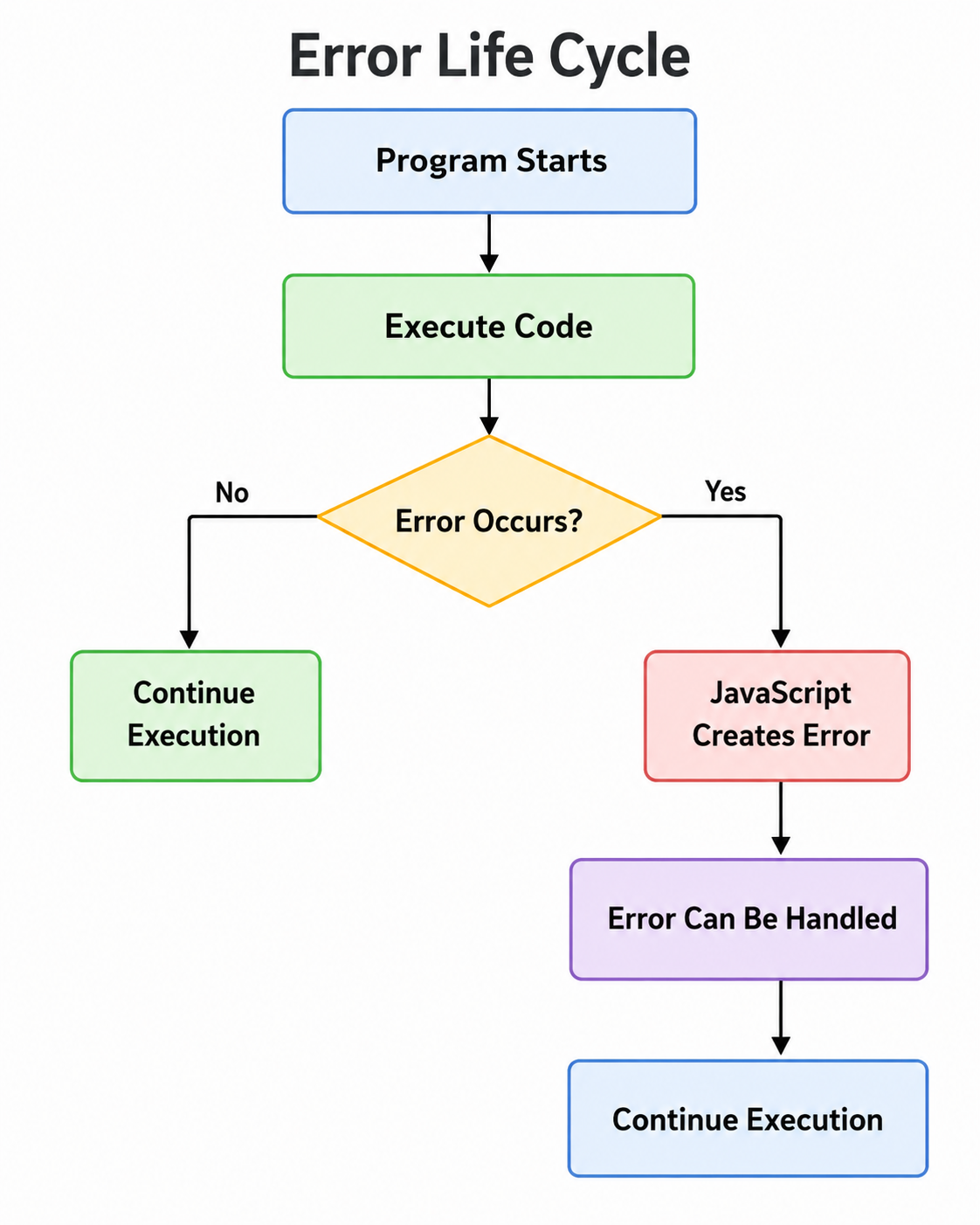
Why Do Errors Occur?
Errors usually occur because of one or more of the following reasons.
1. Programmer Mistakes
Example:
console.log(age);2. Invalid User Input
Example:
A user enters:
abc253. Server Problems
Example:
A REST API is unavailable.
4. Internet Connection Failure
Example:
The browser cannot reach the server.
5. Incorrect Data Format
Example:
Invalid JSON received from an API.
6. File Not Found
Example:
<script src="app.js"></script>Types of JavaScript Errors
JavaScript has several built-in error types.
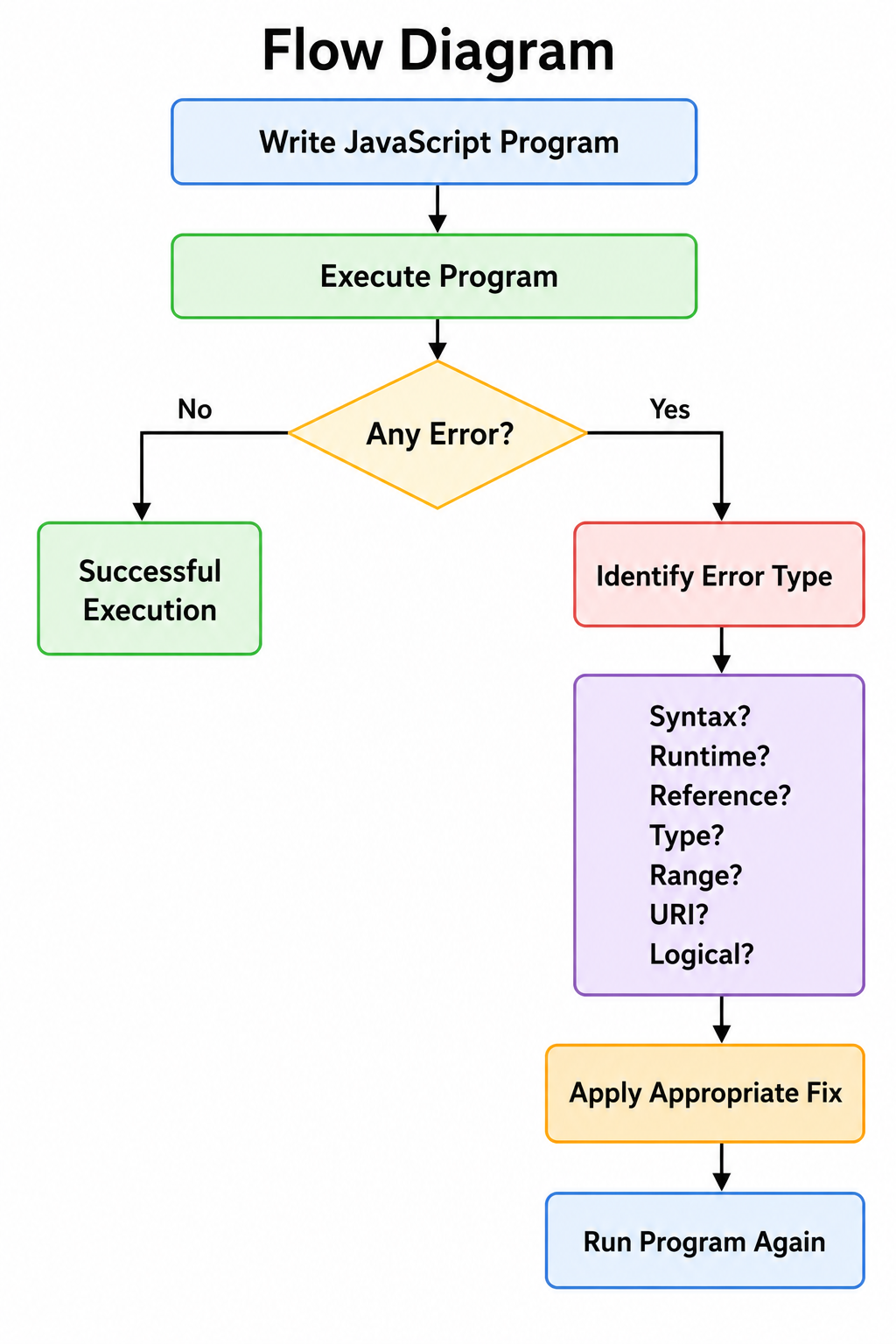
They include:
- Syntax Error
- Runtime Error
- Logical Error
- Reference Error
- Type Error
- Range Error
- URI Error
- Eval Error
Each serves a different purpose.
1. Syntax Error
What is a Syntax Error?
A Syntax Error occurs when JavaScript code violates the language grammar.
The browser cannot understand the program.
These errors are detected before execution.
Common Causes
- Missing brackets
- Missing parentheses
- Missing quotation marks
- Invalid keywords
- Incorrect punctuation
Syntax
if(condition){

}
Example 1
if(age > 18{

console.log("Eligible");

}SyntaxError:
Unexpected token '{'Explanation
The closing parenthesis after the condition is missing.
Correct code:
if(age > 18){

console.log("Eligible");

}
Example 2
let name = "Akshay;SyntaxError:
Invalid or unexpected tokenReal-World Scenario
While creating a registration form, forgetting to close a curly brace may prevent the entire JavaScript file from loading.
Best Practices
– Use code formatting
– Use an IDE like VS Code
– Enable syntax highlighting
– Use ESLint
2. Runtime Error
What is a Runtime Error?
A Runtime Error occurs while the program is executing.
The code is syntactically correct, but an unexpected condition occurs during execution.
Example
let numbers = null;

console.log(numbers.length);TypeError:
Cannot read properties of nullExplanation
The variable exists.
However, its value is null.
JavaScript cannot determine the length of a null value.
Real-World Example
A website requests data from an API.
The API returns:
null3. Logical Error
What is a Logical Error?
Logical errors do not generate an exception.
The program runs successfully but produces an incorrect result.
These errors are often the hardest to identify because the code executes without any warning.
Example 1
let totalMarks = 80;
let bonusMarks = 20;

let finalMarks = totalMarks - bonusMarks;

console.log(finalMarks);60The code executes successfully, but the logic is incorrect. Bonus marks should be added, not subtracted.
Correct code:
let finalMarks = totalMarks + bonusMarks;

console.log(finalMarks);100Example 2
let age = 16;

if(age > 18){

console.log("Eligible to Vote");

}(No Output)The condition excludes users who are exactly 18 years old. The correct condition should be:
if(age >= 18){

console.log("Eligible to Vote");

}
Why Logical Errors Are Dangerous
Unlike syntax or runtime errors, logical errors do not stop the program. They silently produce incorrect calculations, decisions, or outputs, which can lead to incorrect business results.
4. ReferenceError
What is a ReferenceError?
A ReferenceError occurs when JavaScript tries to access a variable, function, or object that has not been declared or is outside its scope.
It is one of the most common errors encountered by beginners and developers.
Common Causes
- Accessing an undeclared variable
- Typographical mistakes in variable names
- Accessing variables outside their scope
- Using variables before declaration (with
letandconst)
Syntax
console.log(variableName);variableName has not been declared, JavaScript throws a ReferenceError.Example 1: Undeclared Variable
console.log(username);ReferenceError: username is not definedThe variable username does not exist.
JavaScript searches for the variable in memory and cannot find it.
Example 2: Typographical Error
let studentName = "Akshay";

console.log(studentname);ReferenceError: studentname is not definedExplanation
JavaScript is case-sensitive.
studentNamestudentnameExample 3: Scope Error
function display(){

    let city = "Sangli";

}

console.log(city);ReferenceError: city is not definedThe variable city exists only inside the function.
It cannot be accessed outside the function.
Real-World Example
Imagine a login page.
function login(){

    let username="Akshay";

}

console.log(username);username outside the function generates a ReferenceError.Best Practices
– Always declare variables before using them
– Use meaningful variable names
– Avoid spelling mistakes
– Prefer let and const
5. TypeError
What is a TypeError?
A TypeError occurs when an operation is performed on a value of an inappropriate type.
It generally occurs when:
- Calling something that is not a function
- Accessing properties of
null - Accessing properties of
undefined
Example 1
let name = "Akshay";

name();TypeError:
name is not a functionThe variable stores a string.
A string cannot be executed like a function.
Example 2
let student = null;

console.log(student.name);TypeError:
Cannot read properties of nullExample 3
let numbers;

console.log(numbers.length);TypeError:
Cannot read properties of undefinedReal-World Example
Suppose an API returns:
null{
name:"Akshay"
}data.nameBest Practices
– Check whether an object exists before accessing its properties
Example
if(student){

console.log(student.name);

}
Using Optional Chaining
console.log(student?.name);6. RangeError
What is a RangeError?
A RangeError occurs when a value is outside the acceptable range.
Example 1
let arr = new Array(-5);RangeError:
Invalid array lengthExplanation
Array size cannot be negative.
Example 2
let number = 5;

console.log(number.toFixed(200));
Output
RangeErrorReal-World Example
Suppose a user enters
-10Creating
new Array(-10)Best Practices
– Validate numeric values
– Never trust user input
7. URIError
What is URIError?
A URIError occurs when JavaScript cannot correctly encode or decode a Uniform Resource Identifier (URI).
Example
decodeURIComponent("%");URIError:
URI malformedExplanation
The % character represents an incomplete escape sequence.
Real-World Example
Suppose an application receives a corrupted URL from an external API.
Trying to decode it throws a URIError.
Best Practices
– Validate URLs
– Encode user-generated URLs properly
8. EvalError
What is EvalError?
An EvalError relates to the use of the eval() function.
Modern JavaScript rarely throws EvalError because eval() is discouraged.
Why is eval() Discouraged?
- Slow
- Security risk
- Difficult to debug
- Difficult to maintain
Example
eval("2+3");5Recommendation
Avoid using eval() in production applications.
Comparison of JavaScript Error Types
| Error Type | Cause | Example |
|---|---|---|
| SyntaxError | Invalid syntax | Missing bracket |
| Runtime Error | Error during execution | Null property access |
| Logical Error | Incorrect program logic | Wrong calculation |
| ReferenceError | Undeclared variable | console.log(age) |
| TypeError | Wrong data type | Calling a string as function |
| RangeError | Value outside valid range | Negative array length |
| URIError | Invalid URI | decodeURIComponent("%") |
| EvalError | eval() issues | Rarely used |
Runtime Errors vs Logical Errors
| Runtime Error | Logical Error |
|---|---|
| Stops execution | Program continues |
| Generates exception | No exception |
| Easier to detect | Difficult to detect |
| Can use try…catch | Cannot use try…catch |
Flow Diagram
Common Mistakes
Mistake 1
Using variables before declaration.
console.log(name);

let name = "Akshay";
Mistake 2
Wrong variable spelling.
studentName

studentname
Mistake 3
Accessing null objects.
student.namestudent = null;Mistake 4
Ignoring browser console messages.
Always inspect browser errors before modifying code.
Best Practices
– Use meaningful variable names
– Initialize variables properly
– Validate user inputs
– Test applications regularly
– Read browser console errors carefully
– Use modern IDEs such as Visual Studio Code
– Use ESLint for syntax checking
– Avoid using eval()
Quick Revision
| Error | Meaning |
|---|---|
| SyntaxError | Incorrect JavaScript syntax |
| Runtime Error | Error while executing the program |
| Logical Error | Incorrect output without exception |
| ReferenceError | Variable not found |
| TypeError | Wrong data type used |
| RangeError | Invalid numeric range |
| URIError | Invalid URI encoding or decoding |
| EvalError | Related to the use of eval() |
Understanding Error Handling in JavaScript
Errors are unavoidable in software development. Instead of allowing an application to terminate unexpectedly, JavaScript provides mechanisms to detect, handle, and recover from errors gracefully.
The primary error handling keywords are:
trycatchfinallythrow
These keywords work together to create robust and user-friendly applications.
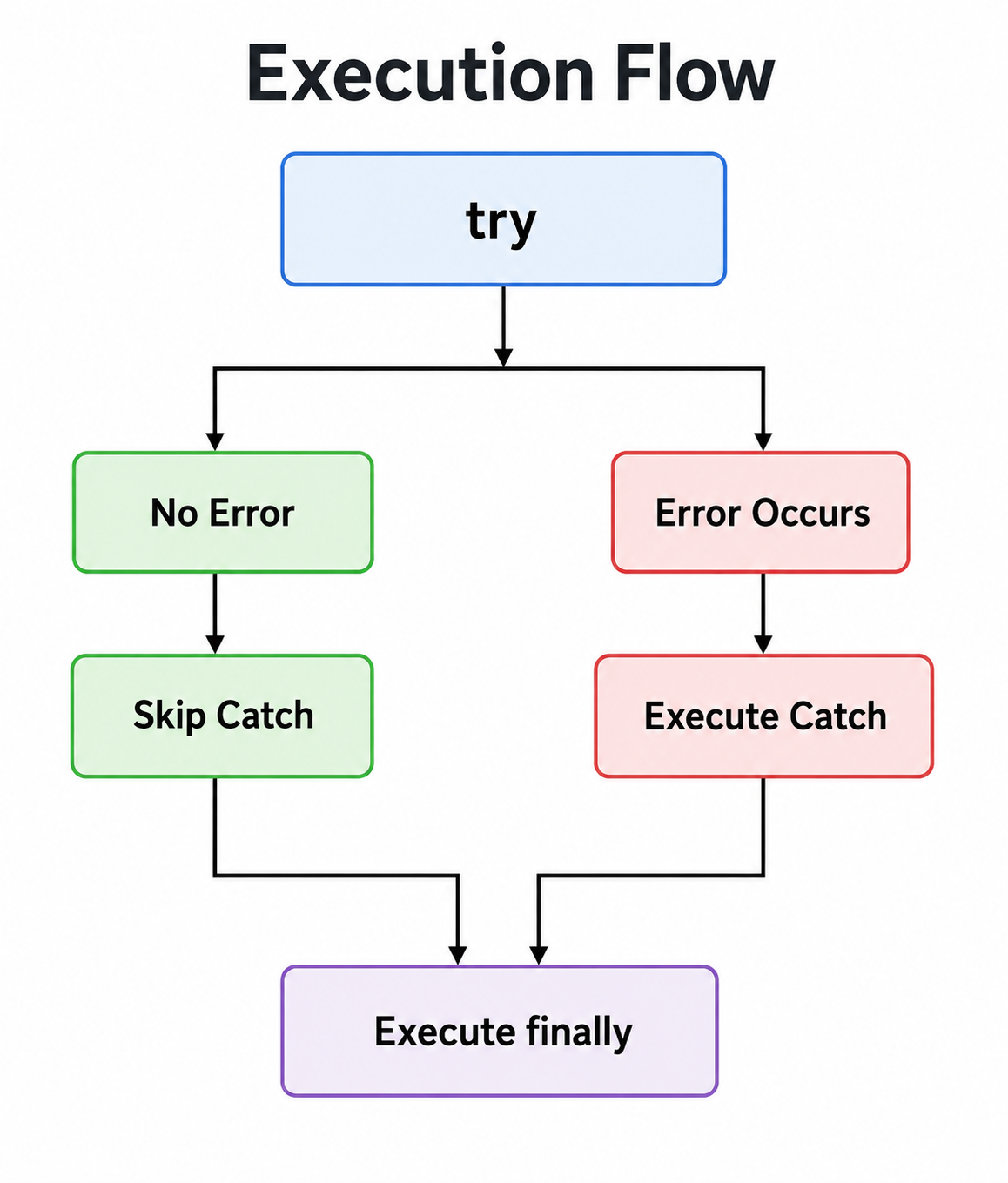
Error Handling Flow
Program Starts
      │
      ▼
Execute try Block
      │
      ├──────────────┐
      │              │
 No Error       Error Occurs
      │              │
      ▼              ▼
 Skip catch     Execute catch
      │              │
      └──────┬───────┘
             ▼
     Execute finally
             │
             ▼
     Continue Program
The try Statement
What is try?
The try block contains the code that JavaScript should execute normally. If an error occurs inside the block, JavaScript immediately stops executing the remaining statements in the try block and transfers control to the catch block.
Using try allows potentially risky code to execute safely without crashing the application.
Syntax
try{

    // Code that may generate an error

}
Example 1
try{

    console.log("Program Started");

}Program StartedSince no error occurs, JavaScript executes the statements normally.
Example 2
try{

    console.log("Reading File");

    console.log(data);

    console.log("Completed");

}Reading File
ReferenceError:
data is not definedThe variable data does not exist.
Execution stops immediately after the error.
The last statement is never executed.
Real-World Example
Suppose an application is reading information returned by an API.
let student = response.data;Using try prepares the application for such situations.
The catch Statement
What is catch?
The catch block executes only when an error occurs inside the corresponding try block.
Instead of terminating the program, JavaScript sends the error object to the catch block.
Syntax
try{

}
catch(error){

}
Example 1
try{

    console.log(userName);

}
catch(error){

    console.log("Error Handled");

}Error HandledExplanation
The variable userName is undefined.
Instead of stopping the application, the error is handled.
Example 2
try{

    console.log(city);

}
catch(error){

    console.log(error);

}ReferenceError:
city is not definedExample 3
try{

    console.log(city);

}
catch(error){

    console.log(error.name);

}ReferenceErrorExample 4
try{

    console.log(city);

}
catch(error){

    console.log(error.message);

}city is not definedReal-World Example
A banking application retrieves account details.
If the account server is unavailable, instead of displaying a browser error, the application shows:
Unable to retrieve account details.
Please try again later.catch.The finally Statement
What is finally?
The finally block always executes, regardless of whether an error occurs.
It is mainly used for:
- Closing database connections
- Stopping loading indicators
- Closing files
- Releasing memory
- Cleaning temporary data
Syntax
try{

}
catch(error){

}
finally{

}
Execution Flow
Example 1
try{

    console.log("Reading Data");

}
catch(error){

    console.log(error);

}
finally{

    console.log("Process Finished");

}Reading Data
Process FinishedExample 2
try{

    console.log(student);

}
catch(error){

    console.log("Error Found");

}
finally{

    console.log("Closing Resources");

}Error Found
Closing ResourcesExplanation
Even though an error occurred, finally executed.
Example 3
try{

    let result = 20/10;

    console.log(result);

}
catch(error){

    console.log(error);

}
finally{

    console.log("Calculation Completed");

}
Output
2

Calculation Completed
Best Practices
Use finally for cleanup tasks.
Avoid writing business logic inside finally.
The throw Statement
What is throw?
JavaScript automatically throws many built-in errors.
Sometimes developers need to generate their own errors.
The throw statement is used to create custom exceptions.
Why Use throw?
Suppose users must be at least 18 years old.
If a user enters:
15Syntax
throw expression;Example 1
let age = 16;

if(age < 18){

    throw "Not Eligible";

}Uncaught
Not EligibleExample 2
let marks = -10;

if(marks < 0){

    throw "Marks cannot be negative";

}Marks cannot be negativeExample 3
let salary = 0;

if(salary <= 0){

    throw "Invalid Salary";

}
Using throw with try…catch
try{

    let age = 15;

    if(age < 18){

        throw "Not Eligible to Vote";

    }

}
catch(error){

    console.log(error);

}Not Eligible to VoteExplanation
Instead of allowing the application to continue with invalid data, the program generates a custom error and handles it gracefully.
Why Use throw?
- Business Rule Validation
- Input Validation
- API Validation
- Database Validation
- File Validation
Error Object
What is an Error Object?
Whenever an exception occurs, JavaScript creates an Error Object.
This object contains useful debugging information.
Properties of Error Object
| Property | Description |
|---|---|
| name | Type of Error |
| message | Description of Error |
| stack | Call Stack Information |
error.name
try{

    console.log(username);

}
catch(error){

    console.log(error.name);

}ReferenceErrorerror.message
try{

    console.log(username);

}
catch(error){

    console.log(error.message);

}username is not definederror.stack
try{

    console.log(username);

}
catch(error){

    console.log(error.stack);

}ReferenceError:
username is not defined
at...Complete Example
try{

    console.log(student);

}
catch(error){

    console.log("Name :", error.name);

    console.log("Message :", error.message);

    console.log("Stack :", error.stack);

}Name : ReferenceError
Message : student is not defined
Stack :
ReferenceError...throw vs try…catch
| throw | try…catch |
|---|---|
| Creates an error | Handles an error |
| Stops normal execution | Prevents application crash |
| Used for custom validation | Used for error recovery |
Common Mistakes
Empty catch Block
catch(error){

}Using throw Without catch
throw "Error";try...catch, the program terminates with an uncaught exception.Ignoring Error Messages
Never suppress errors without understanding their cause.
Best Practices
– Throw meaningful error messages
– Handle only expected exceptions
– Always log unexpected errors
– Keep try blocks as small as possible
– Use finally for cleanup tasks
– Avoid empty catch blocks
Creating Custom Errors
What are Custom Errors?
JavaScript provides built-in errors such as:
- ReferenceError
- TypeError
- SyntaxError
- RangeError
However, real-world applications often require developers to define business-specific errors.
For example:
- Invalid Student ID
- Invalid Transaction Amount
- Password Too Weak
- Product Out of Stock
- Seat Already Booked
These are not JavaScript errors but application-specific errors.
To handle such situations effectively, JavaScript allows developers to create Custom Errors.
Why Create Custom Errors?
Custom errors make applications:
- Easier to debug
- Easier to maintain
- More readable
- More meaningful for users
- Better organized
Instead of displaying:
TypeErrorInvalid Student Roll NumberUsing throw to Create Custom Errors
The simplest way to create a custom error is by using the throw statement.
Example 1: Age Validation
try{

    let age = 15;

    if(age < 18){

        throw "You must be at least 18 years old.";

    }

    console.log("Registration Successful");

}
catch(error){

    console.log(error);

}You must be at least 18 years old.Explanation
The program checks the user’s age.
If the age is less than 18, a custom error message is generated.
Example 2: Bank Withdrawal
try{

    let balance = 2000;

    let withdraw = 5000;

    if(withdraw > balance){

        throw "Insufficient Balance";

    }

}
catch(error){

    console.log(error);

}Insufficient BalanceExample 3: Product Stock Validation
try{

    let stock = 0;

    if(stock <= 0){

        throw "Product Out of Stock";

    }

}
catch(error){

    console.log(error);

}Product Out of StockCreating Custom Error Classes
Using strings with throw works for small programs.
Professional applications usually extend JavaScript’s built-in Error class.
Syntax
class CustomError extends Error{

    constructor(message){

        super(message);

    }

}
Why Extend the Error Class?
Using custom error classes provides:
- Error name
- Error message
- Stack trace
- Better debugging
- Better maintainability
Example 1: ValidationError
class ValidationError extends Error{

    constructor(message){

        super(message);

        this.name = "ValidationError";

    }

}

try{

    throw new ValidationError("Invalid Username");

}
catch(error){

    console.log(error.name);

    console.log(error.message);

}ValidationError
Invalid UsernameExplanation
Instead of a generic error, JavaScript now identifies the error as a ValidationError.
Example 2: StudentNotFoundError
class StudentNotFoundError extends Error{

    constructor(message){

        super(message);

        this.name = "StudentNotFoundError";

    }

}

try{

    throw new StudentNotFoundError("Student Record Not Found");

}
catch(error){

    console.log(error.name);

    console.log(error.message);

}StudentNotFoundError
Student Record Not FoundExample 3: PaymentError
class PaymentError extends Error{

    constructor(message){

        super(message);

        this.name = "PaymentError";

    }

}

try{

    throw new PaymentError("Payment Gateway Failed");

}
catch(error){

    console.log(error.name);

    console.log(error.message);

}PaymentError
Payment Gateway FailedReal-World Examples of Custom Errors
| Application | Custom Error |
|---|---|
| Banking System | InsufficientBalanceError |
| E-Commerce | ProductOutOfStockError |
| College ERP | StudentNotFoundError |
| Hospital | PatientNotFoundError |
| Railway Reservation | SeatAlreadyBookedError |
| Library | BookUnavailableError |
Browser Developer Tools
What are Browser Developer Tools?
Browser Developer Tools (DevTools) are built-in utilities that help developers inspect, debug, analyze, and optimize web applications.
Every modern browser includes DevTools.
Examples:
- Google Chrome
- Microsoft Edge
- Mozilla Firefox
How to Open DevTools
Method 1
F12Ctrl + Shift + IRight Click → Inspect
Main Sections of DevTools
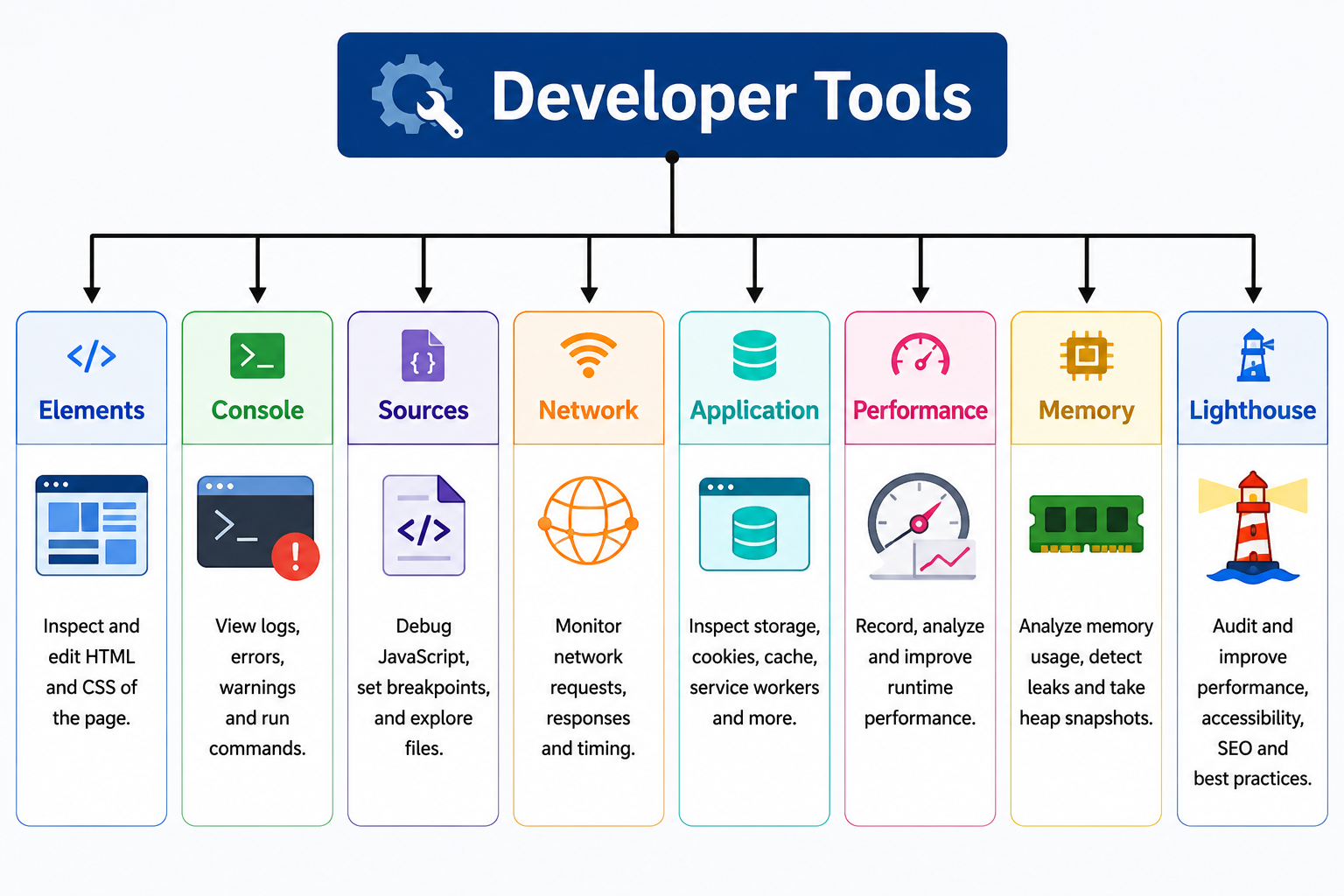
Elements Panel
Purpose
The Elements panel displays the HTML structure of a webpage.
Developers can:
- View HTML
- Edit HTML
- Modify CSS
- Test layouts
- Inspect Bootstrap classes
Real-World Example
Suppose a button is not aligned correctly.
Using the Elements panel, developers can:
- Inspect CSS
- Modify margin
- Modify padding
- Test Bootstrap classes
without editing the source code.
Console Panel
Purpose
The Console displays:
- JavaScript errors
- Warnings
- Console messages
- API responses
It is the most frequently used debugging tool.
Example
console.log("Welcome");WelcomeSources Panel
Purpose
The Sources panel allows developers to:
- View JavaScript files
- Add breakpoints
- Step through code
- Inspect variables
Network Panel
Purpose
Displays all network activity.
Examples:
- HTML Requests
- CSS Requests
- JavaScript Requests
- API Calls
- Images
- Fonts
Real-World Example
Suppose an API returns:
404 Not FoundApplication Panel
Purpose
Used to inspect browser storage.
Examples:
- Local Storage
- Session Storage
- Cookies
- IndexedDB
Example
After executing
localStorage.setItem("name","Akshay");Application
↓
Local Storagename AkshayConsole Methods
JavaScript provides several console methods for debugging.
console.log()
Displays general information.
console.log("Hello JavaScript");Hello JavaScriptconsole.warn()
Displays warnings.
console.warn("Low Disk Space");Warning: Low Disk Spaceconsole.error()
Displays errors.
console.error("Database Connection Failed");Error:Database Connection Failedconsole.table()
Displays data in tabular form.
let students = [

{
name:"Akshay",
marks:85
},

{
name:"Rahul",
marks:90
}

];

console.table(students);┌─────────┬──────────┬───────┐
│ name │ marks │
├─────────┼──────────┼───────┤
│ Akshay │ 85 │
│ Rahul │ 90 │
└─────────┴──────────┴───────┘console.clear()
Clears the console.
console.clear();console.time()
Measures execution time.
console.time("Loop");

for(let i=1;i<=1000000;i++){

}

console.timeEnd("Loop");Loop: 5.43 msconsole.group()
Groups related console messages.
console.group("Student Details");

console.log("Name : Akshay");

console.log("Course : JavaScript");

console.groupEnd();
Best Practices
– Use meaningful custom errors
– Extend the Error class for large applications
– Use DevTools regularly
– Check the Console before editing code
– Monitor API requests using the Network panel
– Inspect Local Storage using the Application panel
– Use console.table() for arrays and objects
Breakpoints in JavaScript
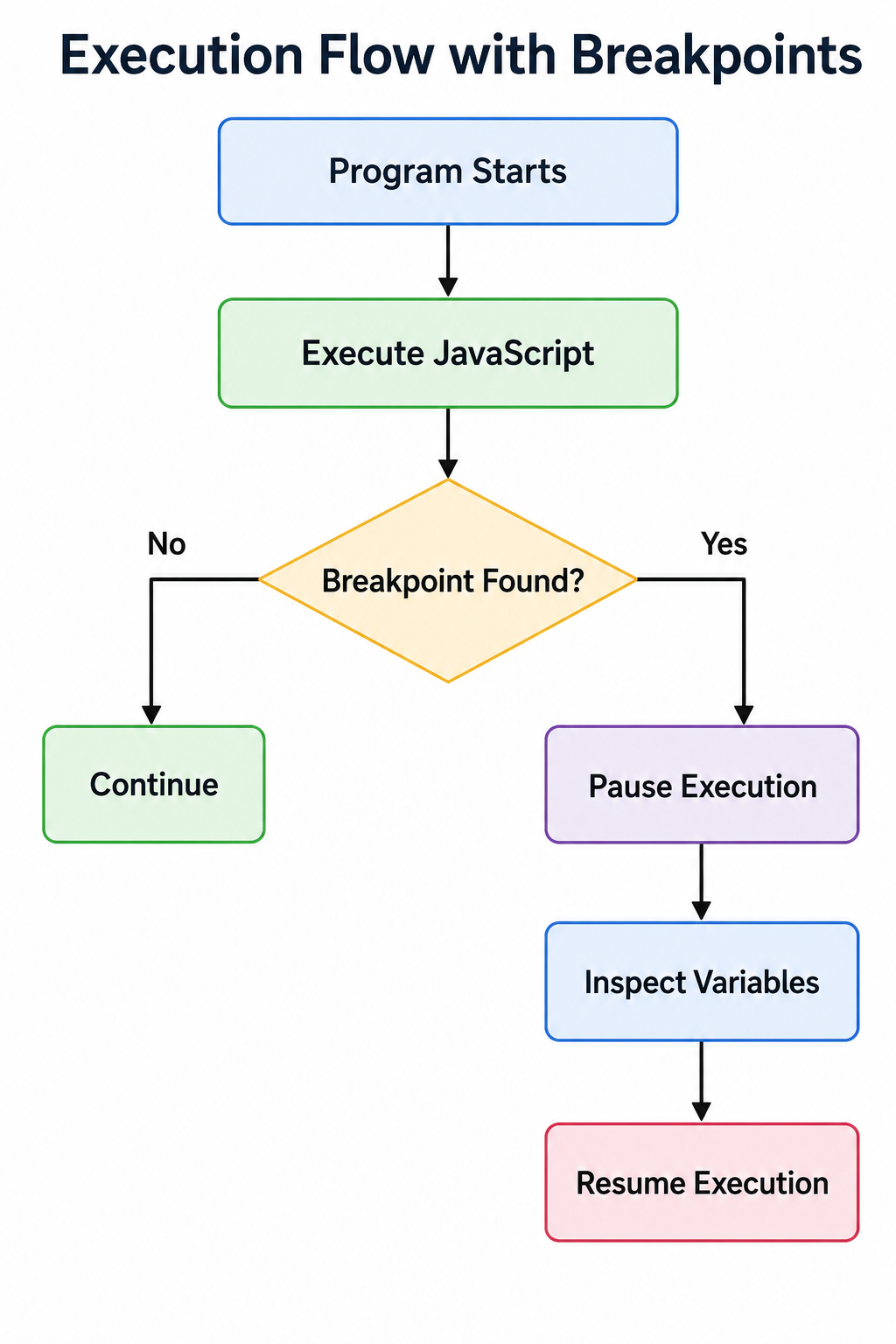
What is a Breakpoint?
A Breakpoint is a debugging feature that pauses the execution of JavaScript code at a specific line. This allows developers to inspect variables, monitor execution flow, and identify bugs before the program continues.
Breakpoints are one of the most powerful tools available in Browser Developer Tools.
Why Use Breakpoints?
Breakpoints help developers:
- Pause program execution
- Inspect variable values
- Understand code flow
- Debug loops
- Analyze function calls
- Detect logical errors
- Diagnose unexpected behavior
How to Add a Breakpoint
Step 1
Open Developer Tools.
Press F12Open the Sources tab.
Step 3
Select the JavaScript file.
Step 4
Click the line number where you want execution to pause.
A blue marker appears indicating the breakpoint.
Execution Flow with Breakpoints
Example 1
let num1 = 20;

let num2 = 10;

let result = num1 + num2;

console.log(result);let result = num1 + num2;Variables window displays:
num1 = 20

num2 = 10Example 2
for(let i=1;i<=5;i++){

    console.log(i);

}Execution pauses for every iteration.
Variables become:
Iteration 1

i = 1Iteration 2
i = 2Iteration 3
i = 3Types of Breakpoints
1. Line Breakpoint
Pauses execution on a specific line.
Most commonly used.
2. Conditional Breakpoint
Execution pauses only when a condition becomes true.
Example:
i == 503. Event Listener Breakpoint
Pauses when an event occurs.
Examples:
- Click
- Mouseover
- Keyup
- Submit
4. XHR / Fetch Breakpoint
Pauses whenever an AJAX or Fetch request is made.
Useful for debugging APIs.
The debugger Keyword
What is debugger?
The debugger statement tells JavaScript to pause execution automatically if Developer Tools are open.
It behaves like a manually added breakpoint.
Syntax
debugger;Example 1
let a = 10;

let b = 20;

debugger;

let c = a + b;

console.log(c);let c = a + b;Example 2
function calculate(){

    let price = 1000;

    let quantity = 5;

    debugger;

    let total = price * quantity;

    console.log(total);

}

calculate();price = 1000
quantity = 5Real-World Example
Suppose a shopping cart total is incorrect.
Insert:
debugger;Inspect:
- Product Price
- Quantity
- Discount
- GST
This quickly identifies incorrect values.
Stack Trace
What is Stack Trace?
A Stack Trace shows the sequence of function calls that led to an error.
It helps identify where an error originated.
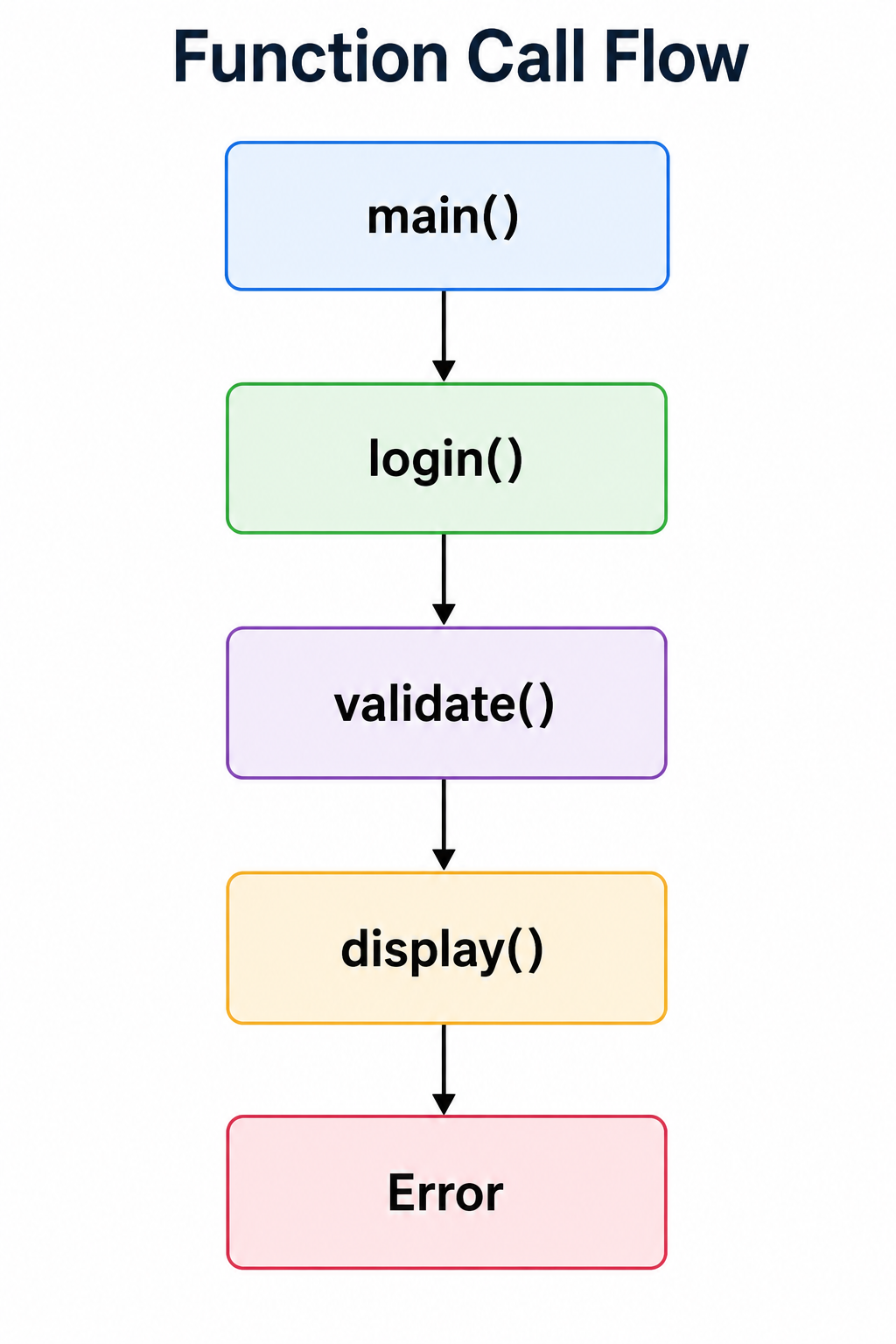
Example
function first(){

    second();

}

function second(){

    third();

}

function third(){

    console.log(user);

}

first();
Output
ReferenceError:
user is not defined

at third()

at second()

at first()
Explanation
The error occurred inside
third()second()first()Reading Stack Traces
Example
ReferenceError

at login()

at validate()

at submit()

at index.htmlsubmit()
↓
validate()
↓
login()
↓
ReferenceErrorDebugging Techniques
Professional developers follow a structured debugging process.
Technique 1
Read the Error Message Carefully.
Example
ReferenceError:student is not definedTechnique 2
Read the Stack Trace.
Locate the exact file and line number.
Technique 3
Use console.log()
console.log(student);Technique 4
Use Breakpoints.
Pause execution.
Inspect variables.
Technique 5
Inspect Network Requests.
Useful when APIs fail.
Technique 6
Validate User Input.
Most runtime errors originate from invalid user data.
Error Handling with Fetch API
Network communication may fail because of:
- No Internet
- Server Down
- Invalid URL
- Timeout
- Authentication Failure
Always handle such situations.
Example
async function loadUsers(){

try{

let response =

await fetch(

"https://jsonplaceholder.typicode.com/users"

);

if(!response.ok){

throw new Error("Unable to Fetch Data");

}

let users =

await response.json();

console.log(users);

}

catch(error){

console.error(error.message);

}

}
Output
Success
Array of UsersUnable to Fetch DataError Handling while Parsing JSON
Sometimes APIs return invalid JSON.
Example
try{

let data =

'{"name":"Akshay",}';

JSON.parse(data);

}
catch(error){

console.log(error.message);

}Unexpected token }Error Handling with Async/Await
async function displayData(){

try{

let response =

await fetch("https://jsonplaceholder.typicode.com/posts");

let data =

await response.json();

console.log(data);

}

catch(error){

console.log("Something went wrong");

}

}
Error Handling in Form Validation
try{

let username = "";

if(username===""){

throw new Error(

"Username is Required"

);

}

}
catch(error){

console.log(error.message);

}
Practical Mini Project 1
Safe Division Calculator
Learning Objectives
This project demonstrates how to use:
- try…catch
- throw
- finally
- Custom validation
Features
– Division
– Division by zero validation
– Error messages
– finally block
Practical Mini Project 2
Student Registration Validator
Features
– Required Field Validation
– Email Validation
– Custom Errors
– Form Validation
Practical Mini Project 3
API Data Loader
Features
– Fetch API
– Loading Indicator
– Error Handling
– Retry Mechanism
Practical Mini Project 4
Login Error Handler
Features
– Empty Fields
– Password Validation
– Custom Messages
– Error Recovery
Common Mistakes
Ignoring Console Errors
Never ignore browser console messages.
Using Empty catch Blocks
catch(error){

}Using try Around Entire Programs
Keep try blocks small.
Not Validating User Input
Most runtime errors originate from invalid input.
Ignoring API Failures
Always check
response.okBest Practices
– Read error messages carefully
– Handle expected exceptions
– Validate every user input
– Use meaningful custom errors
– Prefer Error objects over plain strings
– Use breakpoints instead of excessive console.log()
– Remove unnecessary debugging statements before deployment
– Use Browser DevTools regularly
– Log unexpected errors during development
– Test applications under different scenarios
Practice Exercises
Exercise 1
Create a calculator that displays an error when dividing by zero.
Exercise 2
Create a registration form that throws custom errors when:
- Name is empty
- Email is invalid
- Password is weak
Exercise 3
Create a Fetch API application that displays a friendly message when the server is unavailable.
Exercise 4
Debug the following code using Browser DevTools.
let student = null;

console.log(student.name);
Multiple Choice Questions (MCQs)
Q1. Which statement is used to handle runtime errors?
A. if
B. for
C. catch
D. switch
Answer: C
Q2. Which block always executes?
A. try
B. catch
C. finally
D. throw
Answer: C
Q3. Which keyword creates a custom exception?
A. break
B. continue
C. throw
D. return
Answer: C
Q4. Which DevTools panel is used to inspect API requests?
A. Elements
B. Network
C. Sources
D. Console
Answer: B
Q5. Which keyword pauses JavaScript execution during debugging?
A. stop
B. pause
C. debugger
D. break
Answer: C
Frequently Asked Interview Questions
- What is error handling in JavaScript?
- What is the difference between a syntax error and a runtime error?
- Explain the
try...catchstatement with an example. - What is the purpose of the
finallyblock? - What is the
throwstatement? - How do you create a custom error in JavaScript?
- What is the
Errorobject? - What is a stack trace?
- What is the purpose of the
debuggerkeyword? - What are breakpoints?
- Which Browser DevTools panels are most useful for debugging?
- How do you handle errors in the Fetch API?
- Why should
response.okbe checked before processing API data? - What is the difference between
console.log()andconsole.error()? - What are the best practices for handling JavaScript errors?
Summary
In this tutorial, we explored JavaScript Error Handling and Debugging from basic to advanced concepts. We learned about different types of JavaScript errors, including syntax, runtime, logical, reference, type, range, URI, and eval errors. We also covered the try, catch, finally, and throw statements, the Error object, custom error classes, browser Developer Tools, breakpoints, the debugger keyword, stack traces, and effective debugging techniques.
We also discussed handling errors while working with Fetch API, JSON parsing, asynchronous operations, and form validation. Finally, we introduced practical project ideas, exercises, MCQs, interview questions, and industry best practices.
By mastering these concepts, developers can build more reliable, maintainable, and user-friendly JavaScript applications while reducing debugging time and improving software quality.