


Introduction
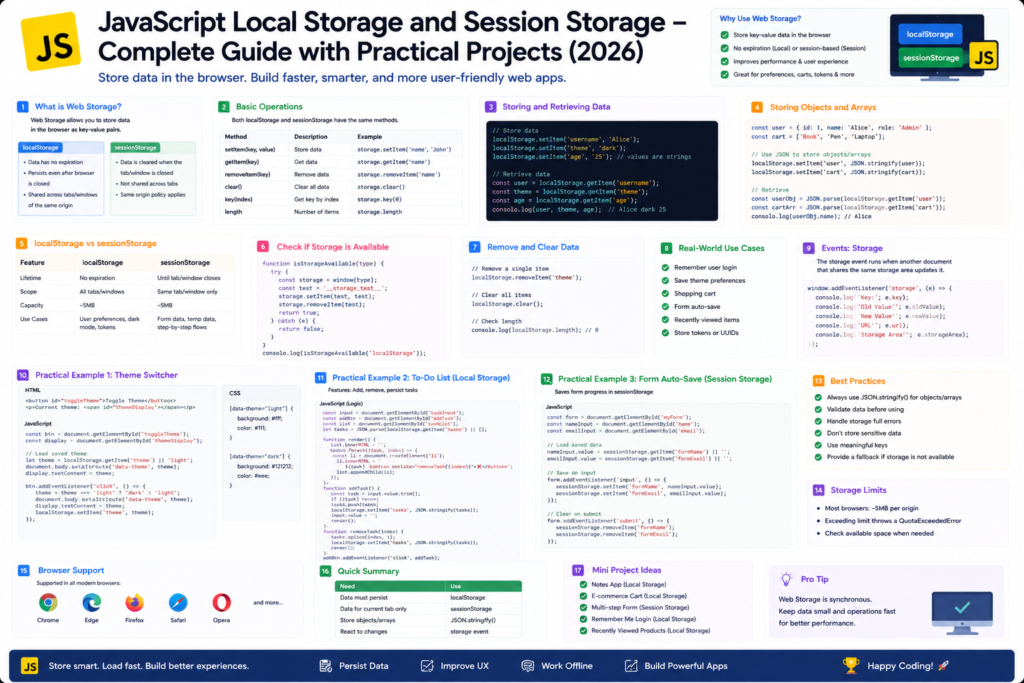
Modern web applications often need to store data directly in the user’s browser.
Examples:
- Remembering Dark Mode Preferences
- Shopping Cart Items
- User Login Information
- Form Drafts
- User Settings
- Recently Viewed Products
JavaScript provides two powerful browser storage mechanisms:
- Local Storage
- Session Storage
Both are part of the Web Storage API.
What is Web Storage API?
Web Storage API allows websites to store data directly inside the browser.
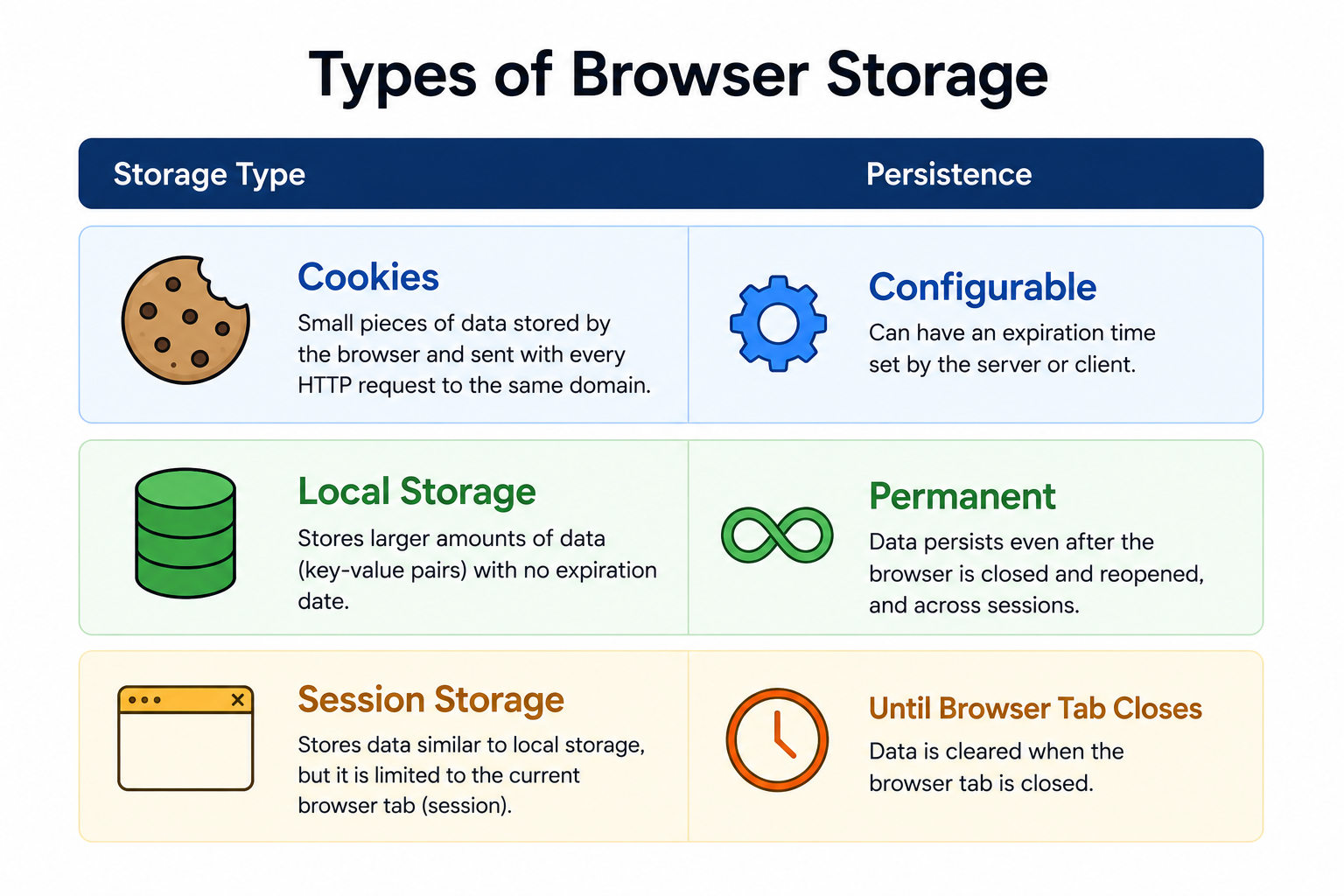
Before Web Storage, developers mainly relied on cookies.
Web Storage offers:
- Larger Storage Capacity
- Better Performance
- Simpler API
- Data Persistence
Types of Browser Storage

What is Local Storage?
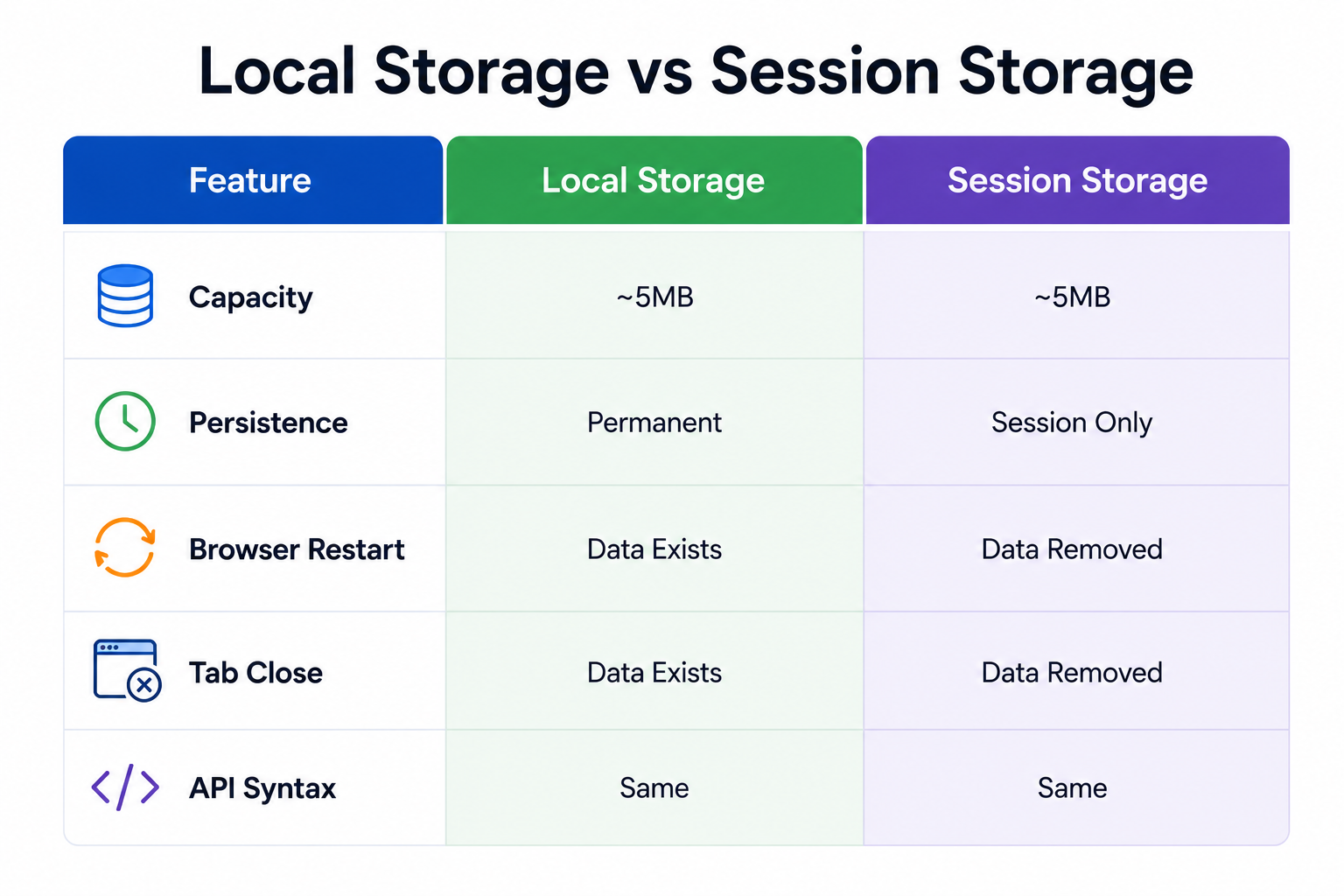
Local Storage stores data permanently inside the browser.
Data remains available even after:
- Page Refresh
- Browser Restart
- System Restart
Data is removed only when:
- User clears browser data
- Application explicitly removes it
What is Session Storage?
Session Storage stores data only for the current browser tab.
Data is removed when:
- Browser Tab Closes
- Browser Window Closes
Data survives:
- Page Refresh
- Navigation Between Pages (same tab)
Local Storage vs Session Storage
Local Storage Methods
setItem()
Stores data.
localStorage.setItem("name","Akshay");getItem()
Retrieves data.
let name = localStorage.getItem("name");

console.log(name);AkshayremoveItem()
Removes specific data.
localStorage.removeItem("name");clear()
Removes all stored data.
localStorage.clear();First Local Storage Example
<!DOCTYPE html>
<html>
<head>
<title>Local Storage Example</title>
</head>

<body>

<button onclick="saveData()"> Save Name </button>

<script>

function saveData(){

localStorage.setItem("name","Akshay");

alert("Data Saved");

}

</script>

</body>
</html>
Retrieving Data
let userName = localStorage.getItem("name");

console.log(userName);
Storing User Input
<input type="text" id="username">

<button onclick="saveName()"> Save </button>
function saveName(){
let name = document.getElementById("username").value;
localStorage.setItem("username",name);
}Session Storage Example
sessionStorage.setItem("user","Akshay");

let user = sessionStorage.getItem("user");

console.log(user);
Why Objects Cannot Be Stored Directly
This will not work properly:
let student = {name:"Akshay",course:"JavaScript"};

localStorage.setItem("student",student);[object Object]JSON.stringify()
Convert object into JSON string.
let student = {name:"Akshay",course:"JavaScript"};

localStorage.setItem("student",JSON.stringify(student));
JSON.parse()
Retrieve object.
let student = JSON.parse(localStorage.getItem("student"));

console.log(student.name);
Storing Arrays
let subjects = [
"HTML",
"CSS",
"JavaScript"
];

localStorage.setItem(
"subjects",
JSON.stringify(
subjects
)

);let data = JSON.parse(
localStorage.getItem(
"subjects"
)
);
console.log(data);Checking Stored Data
Open Browser Developer Tools:
F12
 ↓
Application
 ↓
Local StorageMini Project 1: Remember User Name
Features
- Store Name
- Auto Display Saved Name
- Local Storage
Complete Code
<!DOCTYPE html>
<html>

<head>
<title>Remember User</title>
</head>

<body>

<h1>Remember User</h1>

<input type="text" id="username" placeholder="Enter Name">

<button onclick="saveName()"> Save </button>

<h2 id="result"></h2>

<script>

if(localStorage.getItem("username")){

document.getElementById("result").innerHTML ="Welcome " + localStorage.getItem("username");

}

function saveName(){

let name = document.getElementById("username").value;

localStorage.setItem("username",name);

location.reload();

}

</script>

</body>
</html>
Mini Project 2: Dark Mode Persistence
Features
- Dark Mode
- Theme Persistence
- Local Storage
Complete Code
<!DOCTYPE html>
<html>

<head>

<title>Dark Mode Storage</title>

<style>

.dark{
background:#121212;
color:white;
}

</style>

</head>

<body>

<button id="themeBtn"> Toggle Theme </button>

<script>

if(localStorage.getItem("theme")==="dark"){

document.body.classList.add("dark");

}

document.getElementById("themeBtn")
.addEventListener("click",function(){

document.body.classList.toggle("dark");

if(document.body.classList.contains("dark")){

localStorage.setItem("theme","dark");

}
else{

localStorage.setItem("theme","light");

}

}
);

</script>

</body>
</html>
Mini Project 3: To-Do List with Local Storage
Features
- Add Tasks
- Delete Tasks
- Data Persistence
- Local Storage
- JSON Storage
Complete Code
<!DOCTYPE html>
<html>

<head>

<title>To Do App</title>

<style>

body{
font-family:Arial;
max-width:600px;
margin:auto;
padding:20px;
}

li{
margin-top:10px;
}

button{
margin-left:10px;
}

</style>

</head>

<body>

<h1>To Do List</h1>

<input type="text" id="task">

<button onclick="addTask()"> Add </button>

<ul id="list"></ul>

<script>

let tasks = JSON.parse(localStorage.getItem("tasks")) || [];

displayTasks();

function addTask(){

let task = document.getElementById("task").value;

tasks.push(task);

localStorage.setItem("tasks",JSON.stringify(tasks));

displayTasks();

document.getElementById("task").value = "";

}

function displayTasks(){

let output = "";

tasks.forEach((task,index)=>{

output += `
<li>
${task}
<button onclick="deleteTask(${index})">Delete</button>
</li>`;

}

);

document.getElementById("list").innerHTML = output;

}

function deleteTask(index){

tasks.splice(index,1);

localStorage.setItem("tasks",JSON.stringify(tasks));

displayTasks();

}

</script>

</body>
</html>
Mini Project 4: Session-Based Login Simulation
Features
Session Storage
Temporary Login
Logout
Complete Code
<!DOCTYPE html>
<html>

<head>
<title>Session Login</title>
</head>

<body>

<h1>Login Simulation</h1>

<input type="text" id="username">

<button onclick="login()"> Login </button>

<button onclick="logout()"> Logout </button>

<h2 id="status"></h2>

<script>

showUser();

function login(){

let user = document.getElementById("username").value;

sessionStorage.setItem("user",user);

showUser();

}

function logout(){

sessionStorage.clear();

showUser();

}

function showUser(){

let user = sessionStorage.getItem("user");

if(user){

status.innerHTML = "Logged In: " +user;

}
else{

status.innerHTML = "Not Logged In";

}

}

</script>

</body>
</html>
Security Considerations
Never store:
- Passwords
- Credit Card Details
- Banking Information
- Authentication Tokens without proper security
Store only:
- Preferences
- Theme Settings
- Temporary User Data
- Non-Sensitive Information
Common Interview Questions
- What is Local Storage?
- What is Session Storage?
- Difference between Cookies and Local Storage?
- Difference between Local Storage and Session Storage?
- What is JSON.stringify()?
- What is JSON.parse()?
- How much data can Local Storage store?
- Is Local Storage secure?
- When should Session Storage be used?
- Can Local Storage store objects directly?
Best Practices
- Store only necessary data
- Use JSON for arrays and objects
- Remove unused data
- Validate retrieved data
- Avoid storing sensitive information
- Use Session Storage for temporary sessions
Summary
In this tutorial, we learned:
Browser Storage
- Web Storage API
- Local Storage
- Session Storage
Storage Methods
- setItem()
- getItem()
- removeItem()
- clear()
JSON Handling
- JSON.stringify()
- JSON.parse()
Practical Projects
- Remember User Name
- Dark Mode Persistence
- To-Do List with Local Storage
- Session-Based Login Simulation
Local Storage and Session Storage are powerful tools that allow developers to create persistent and personalized user experiences without requiring a database.